Why trade with MT5?
MetaTrader 5 (MT5) is a next-generation trading platform designed for speed, precision, and deeper market analysis. It offers more tools, timeframes, and order types than MT4, making it ideal for both new and advanced traders.
With MT5, you can:
- • Trade Stock Derivatives, Forex, Commodities, and more.
- • Use 80+ indicators, 21 timeframes, and enhanced charting.
- • Access Depth of Market (DOM) for better pricing visibility.
- • Execute trades instantly with one-click trading.
- • Manage your trades securely across desktop, web, or mobile.
How to trade on MT5
Before placing a trade, ensure your XMTrading account is verified, funded, and logged in.
Step 1: Verify your XMTrading account
Your account must be verified to enable live trading.
- • Log in to the Members Area.
- • Check your verification status.
- • If required, upload documents via My Profile → Upload Documents or click Verify Now on your dashboard.
Step 2: Fund your account
Deposit funds through the Members Area using your preferred payment method. Once credited, you are ready to trade.

Step 3: Log in to MT5
Open MT5 (desktop, web, or mobile) and log in using:
- • Your MT5 account number
- • Your trading password
- • Your XMTrading MT5 server (can be found in your welcome email or Members Area under Account Information)
Confirm that:
- • The connection indicator (bottom-right) is green, and
- • Prices in Market Watch are updating in real time
Step 4: Use the correct trading symbols
Each XMTrading account type has unique trading symbols for Forex, Gold, and Silver:
| Account Type | Symbol Example | Extension |
|---|---|---|
| Standard | EURUSD | (no extension) |
| Micro | EURUSDmicro | micro |
| Zero | EURUSD. | . |
| KIWAMI | EURUSD# | # |
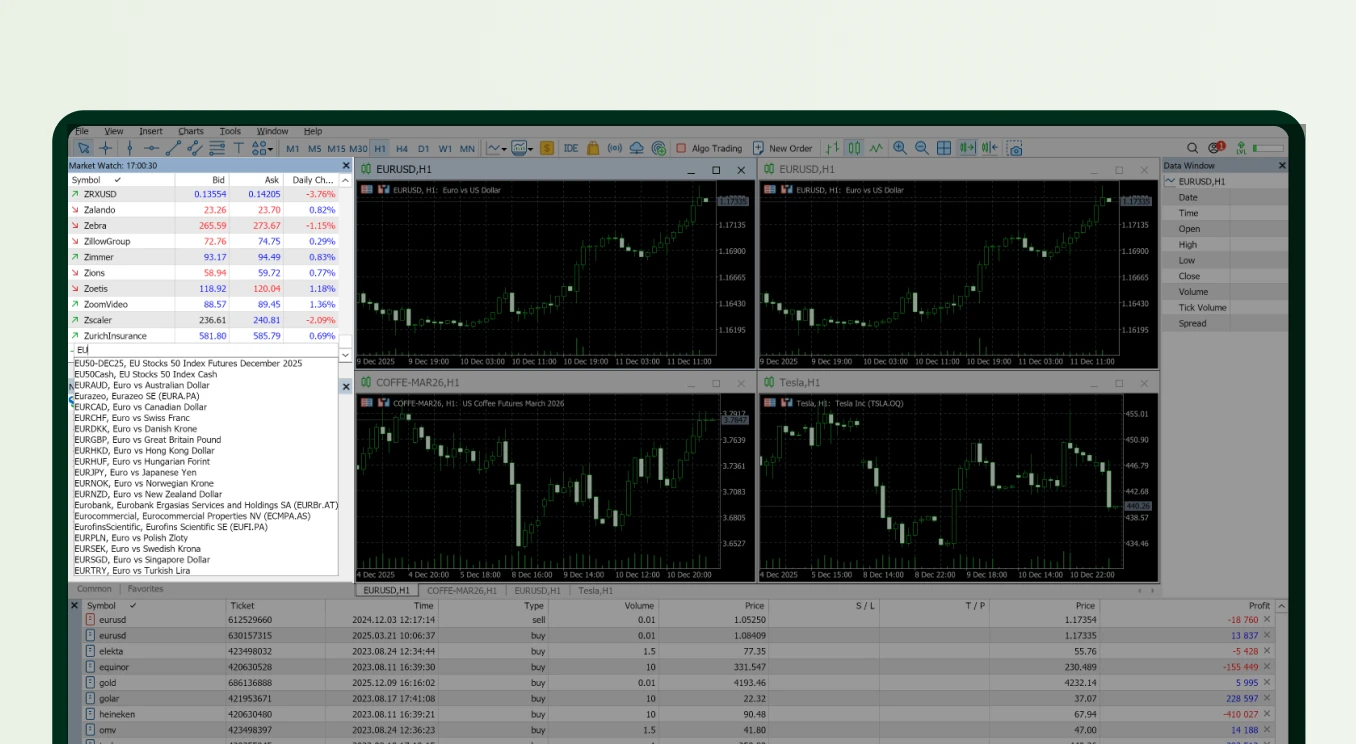
Step 5: Add symbols to Market Watch
Desktop
MT5 offers two clean ways to add only the symbols you need, keeping your workspace clean and responsive:
Option A: Add symbol directly (recommended)
- 1. At the bottom of Market Watch, click + Click to add…
- 2. Type the symbol name (e.g., EURUSDmicro).
- 3. Select it to add it to your list.
To open a chart:
- • Right-click any symbol → Chart Window, or
- • Drag the symbol onto an existing chart
Option B: Add via Symbols menu
- 1. Right-click in the Market Watch window.
- 2. Select Symbols.
- 3. Search or browse categories.
- 4. Click Show next to the symbol you want.
Mobile
- 1. Go to Quotes.
- 2. Tap +.
- 3. Search for the symbol (e.g. EURUSDmicro).
- 4. Tap it to add it to your list.
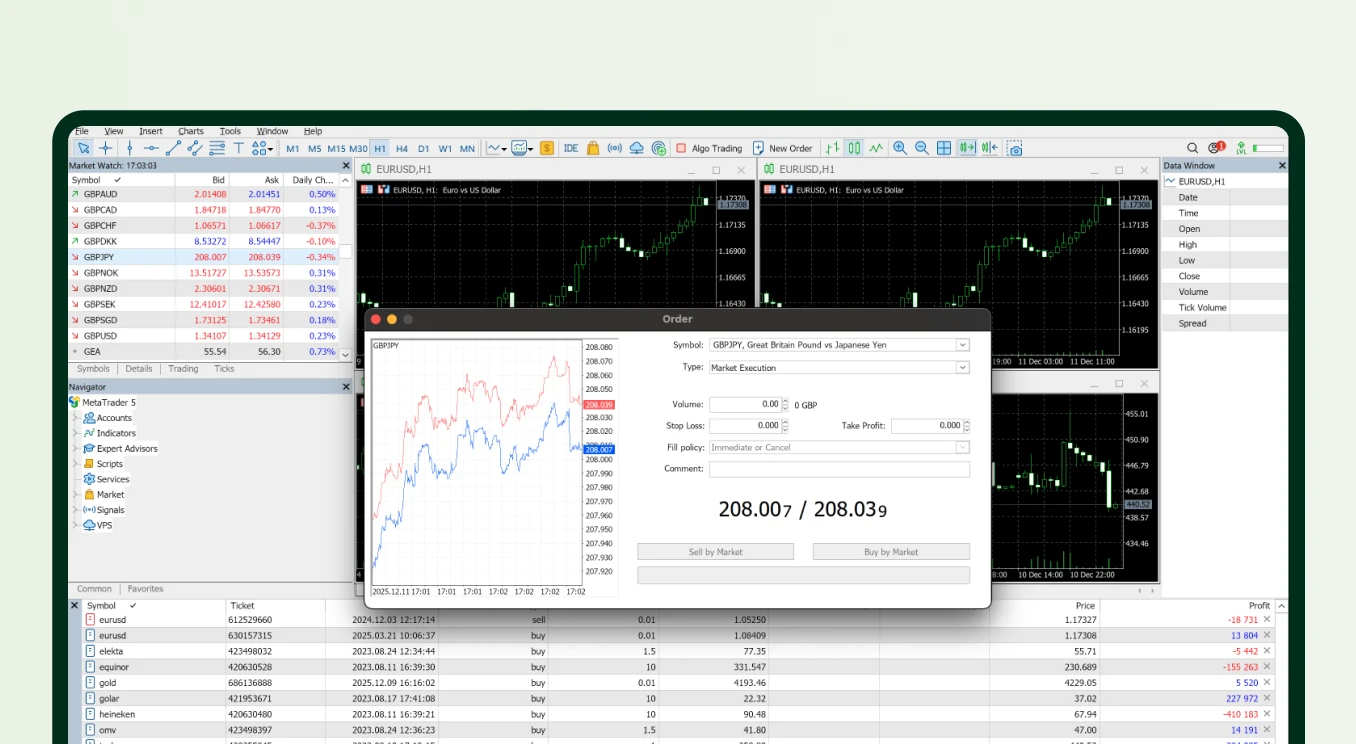
Step 6: Place your first trade
Desktop or WebTrader
- 1. Select a symbol in Market Watch.
- 2. Click New Order (or press F9).
- 3. Choose your order type:
- • Market Execution
- • Pending Order (MT5 supports 6 types: Buy Limit, Sell Limit, Buy Stop, Sell Stop, Buy Stop Limit, Sell Stop Limit)
- 4. Select Volume (lot size).
- 5. Set optional Stop Loss and Take Profit.
- 6. Click Buy or Sell.
Your trade will appear under Toolbox → Trade.
Mobile
- 1. Tap a symbol in Quotes.
- 2. Tap Trade on iOS or New Order on Android.
- 3. Choose order type, volume, SL/TP.
- 4. Tap Buy or Sell.
- • Open trades
- • Pending orders
- • Balance, equity, and margin
- • Right-click the position → Close Position, or
- • Double-click the position → Close
- • Right-click → Modify (adjust SL/TP)
- 1. Go to the Trade tab.
- 2. Tap and hold the position.
- 3. Tap Close or Modify.
- • Always use the correct symbol for your account type.
- • Ensure prices are updating in real time.
- • Avoid using Show All to keep your Market Watch organized.
- • Keep MT5 updated for best performance.
- • If the Buy/Sell button remains disabled, check your symbol, server, and login details or contact Customer Experience for help.
Step 7: Monitor and close trades
Desktop
In Toolbox → Trade, you can monitor:
To close a trade:
To modify: