Why trade with MT4?
MetaTrader 4 (MT4) is one of the world’s most trusted trading platforms, known for its speed, simplicity, and advanced charting tools. Whether you are new or experienced, MT4 gives you everything you need to analyse markets, place orders, and manage positions across devices.
With MT4, you can:
- • Trade Forex, Precious Metals, Indices, and more.
- • Use 30+ technical indicators and fully customizable charts.
- • Execute trades with one-click trading.
- • Manage trades quickly and securely on desktop, web, or mobile.
How to trade on MT4
Before placing a trade, ensure your account is verified, funded, and logged in.
Step 1: Verify your XMTrading account
Your account must be verified to enable live trading.
- • Log in to the Members Area.
- • Check your verification status.
- • If needed, upload your documents via My Profile → Upload Documents or click Verify Now on your dashboard.
Step 2: Fund your account
Deposit funds through the Members Area using your preferred payment method. Once your deposit is credited, you can begin trading immediately.

Step 3: Log in to MT4
Open MT4 (desktop, web, or mobile) and log in using:
- • Your MT4 account number
- • Your trading password
- • Your XMTrading MT4 server (can be found in your welcome email or Members Area under Account Information)
Confirm that:
- • The connection indicator (bottom-right) is green
- • Prices in Market Watch are updating in real time
Step 4: Use the correct trading symbols
Each XMTrading account type uses different symbol formats for Forex, Gold, and Silver:
| Account Type | Symbol Example | Extension |
|---|---|---|
| Standard | EURUSD | (no extension) |
| Micro | EURUSDmicro | micro |
| Zero | EURUSD. | . |
| KIWAMI | EURUSD# | # |
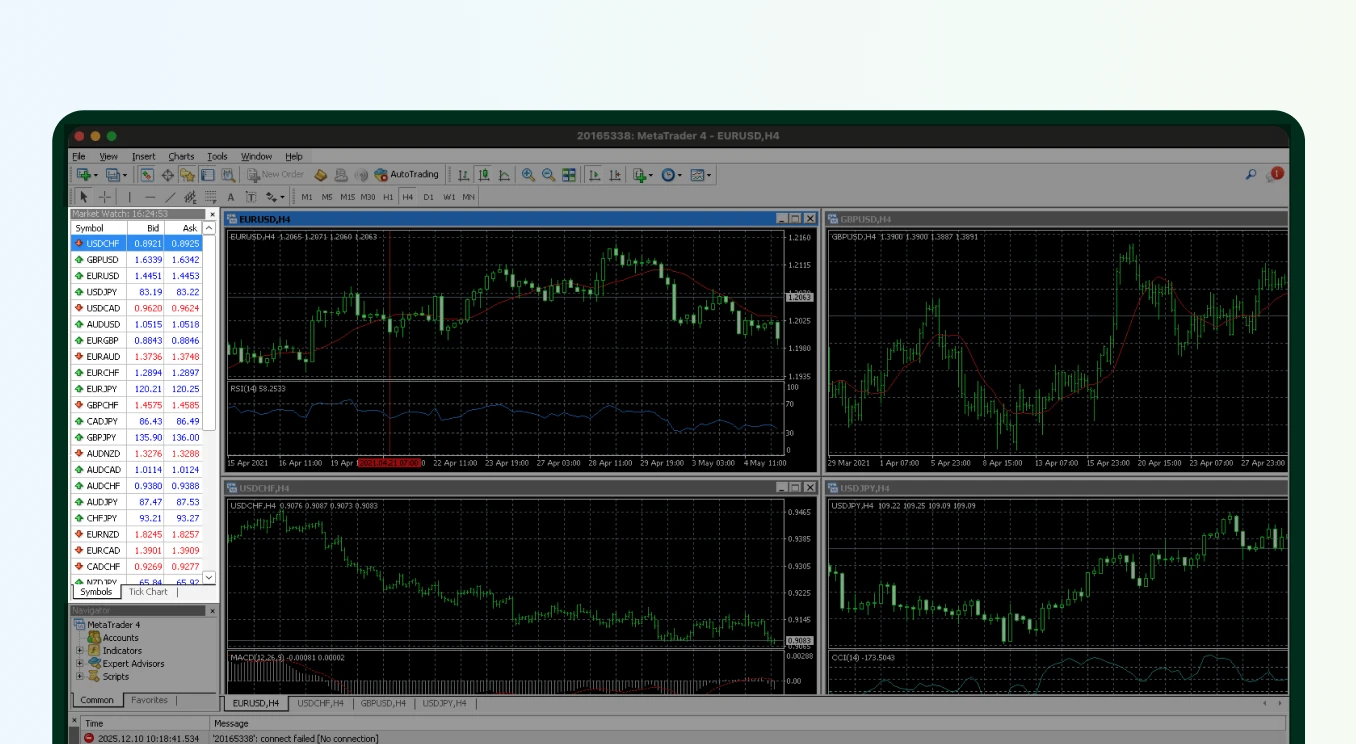
Step 5: Show symbols on your platform
Desktop
If symbols are missing:
- 1. Right-click the Market Watch window.
- 2. Select Show All.
- 3. Or click Symbols to enable individual instruments.
To open a chart:
- • Right-click any symbol → Chart Window, or
- • Drag the symbol onto an existing chart
Mobile
- 1. Go to the Market Watch (Quotes) tab.
- 2. Tap +.
- 3. Search for a symbol (e.g., EURUSDmicro).
- 4. Tap it to add it to your list.
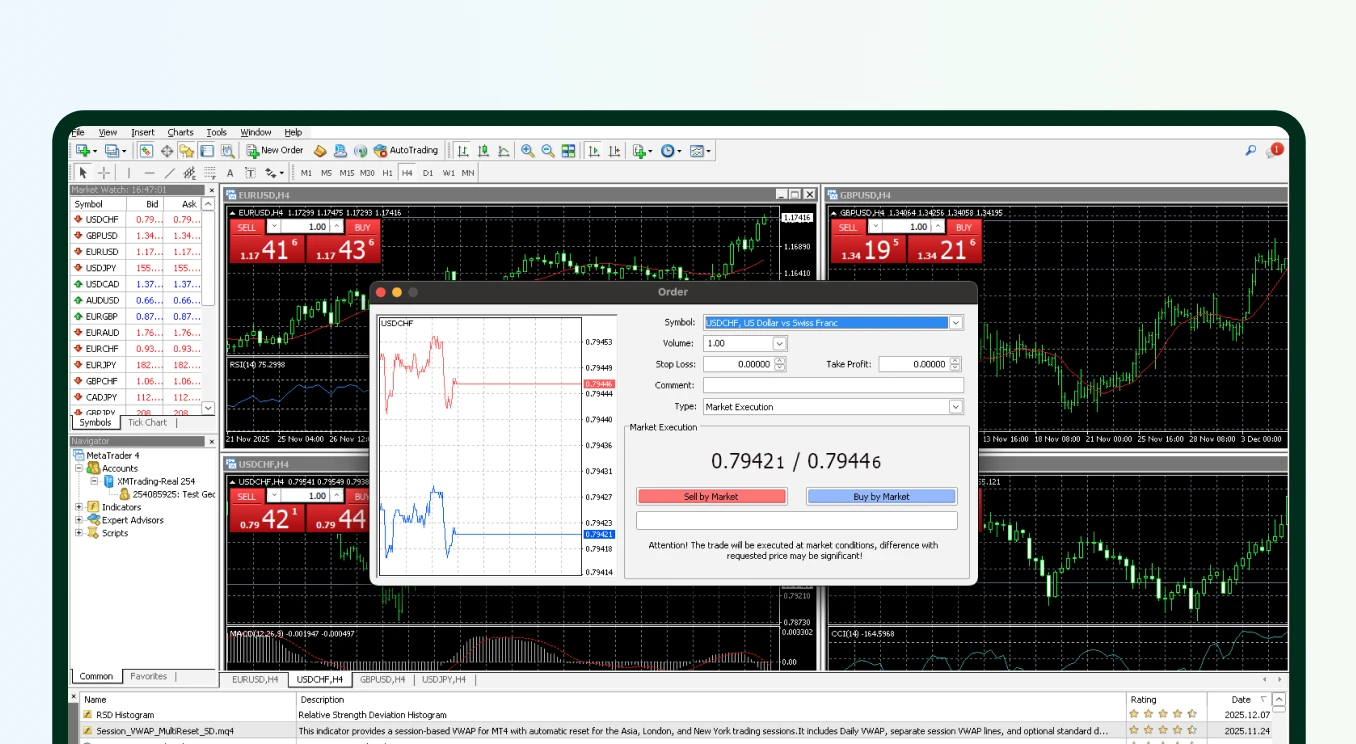
Step 6: Place your first trade
Desktop or WebTrader
- 1. Select a symbol in Market Watch.
- 2. Click New Order (or press F9).
- 3. Choose:
- • Market Execution or Pending Order
- • Volume (lot size)
- • Optional Stop Loss / Take Profit
- 4. Click Buy or Sell.
Your trade will appear in the Terminal → Trade tab.
Mobile
- 1. Tap a symbol in Quotes.
- 2. Tap Trade on iOS or New Order on Android.
- 3. Select volume, SL/TP, and order type.
- 4. Tap Buy or Sell.
Step 7: Monitor and close trades
Desktop
Go to Terminal → Trade to view:
- • Open trades
- • Pending orders
- • Balance, equity, margin
To close a trade:
- • Right-click the order → Close Order, or
- • Double-click the order → Close Order.
Mobile
- 1. Go to the Trade tab.
- 2. Tap and hold the position.
- 3. Tap Close or Modify.
Final tips
- • Always select the correct symbol for your account type.
- • Ensure prices are updating in real time.
- • Keep MT4 updated for best performance.
- • If the Buy/Sell button is disabled, check your symbol, server, and login details.
- • If issues persist, contact Customer Experience for assistance.